
Appearance
Drop or forward documents
Upload an original or forward it to Tehtu. Extraction prepares suggestions; you check the document and create a purchase draft.

Before you start
Select the correct company and open Inbox. Intake currently supports Estonian companies (EE). You need upload/review access, a chart of accounts, and a supplier contact for purchase conversion. Ask your administrator about missing setup.
1. Upload an original
- Open Inbox. The upload area is at the top of the Invoices and receipts tab, above the list. Choose Purchase, Expense, or Travel (and the matching report) first.
- Drop a PDF, JPEG, or PNG on the upload area, choose files, or paste an image. Use one invoice or receipt per file, up to 20 MiB and at most 20 files at a time.
- A notice names the company, destination and file count. Upload starts after five seconds; choose Undo within that time and the files are not sent.
Drop anywhere. You can also drop a PDF, JPEG, or PNG on any page of the workspace. While you drag, an overlay names the destination: Purchase invoice, or the destination chosen on the Invoices and receipts tab while that tab is open. The same five-second Undo notice follows. A drop on a page's own upload area, such as a bank statement or contact import, stays with that area. While a dialog is open nothing is uploaded.
Anything that is not a PDF, JPEG, or PNG is not uploaded. The notice names the file. For a saved email (.eml) it links to the Emails tab; for a file that may be a bank statement (.csv, .txt, .xml) or a bank evidence package (.json) it suggests the page that would take it, without assuming what the file is. Upload is available to roles that can create entries; a role that can only view sees why instead.
Opening another page does not shorten the five seconds. If you switch to a different company, or reload, close or leave the app, during that time, the upload is cancelled and nothing is sent. Opening a page without a company does not cancel it. Once an upload has started it goes on to the company named in its notice; signing out stops uploads that are not finished, but files already sent stay saved. A status panel at the bottom right shows progress; Open in Inbox opens the uploaded document in that company.
Originals are saved and extraction starts automatically. Continue reviewing other documents while it runs. If an upload fails part-way, the files not yet sent stay in the status panel; choose Send N unsent to send only those at once.
All screenshots use fictional documents in a disposable company.
2. Review a purchase
The dashboard's Today list shows how many purchase documents wait for review; Review next document opens the oldest one.
Labelled identifiers in the seller block can pre-select exactly one active known supplier at identity confidence 0.95 when there are no conflicts. A VAT number alone can bind; a registry code without a matching VAT number also needs the labelled seller country. Generic registry and VAT labels outside a party block are treated as seller labels. Party blocks end at a page boundary, a line-table header or a totals label; blank lines keep the block open. A header is a bare party keyword, a keyword followed by a colon and name, or a keyword followed by at least two spaces and a name without digits. Ordinary single-space text and table rows do not change the party. When two party headers stand side by side on one line (for example Müüja and Ostja), the details printed under each header are read for that party. Identifiers printed beside other text on the same line, in a column without its own header, or with only a single space after the label (for example KMKR nr EE123456789) are read for review but do not pre-select a supplier, except directly under a seller header or with an explicit seller label. The alternative labels Reg No., Company registration number, Company reg. no, VAT nr, VAT registration no and VAT Identification Number are read only under a seller header, in a seller column or with an explicit seller label. Explicit seller registry, VAT and country labels identify the seller in any block. Generic country labels are used only inside a party block; unheaded country labels are ignored. Identifiers in the buyer block, identifiers equal to the buyer’s, and identifiers equal to your own company’s never bind a supplier. Pre-selection also needs your company's registry code or VAT number in Settings. If your company's registry code or VAT number is printed on the document, it must be read as the buyer's, with no clearly different buyer name; otherwise the document may be your own sales invoice and no supplier is pre-selected. A contact that is both a customer and a supplier is pre-selected only when the document names your company as the buyer, by registry code, VAT number or exact name. Delivery details are not read: names, registry codes and VAT numbers printed under Ship to, Ship-to, Deliver to, Delivery address, Shipping address, Tarneaadress, Tarne aadress, Kauba saaja, Kaubasaaja, Consignee, Kohaletoimetamise aadress or Tarnekoht count for neither the seller nor the buyer, and nothing from it is used to pre-select a supplier. Delivery to the buyer identified by name outside delivery blocks does not block pre-selection only when every name in the buyer block, on its header and customer-label lines, and the name on each delivery header or on the first line of its block matches that buyer, including names without a recognized legal form. An unnamed delivery block does not veto this exception; for example, two delivery blocks may still allow pre-selection when the second names nobody. This name exception does not require a registry code or VAT number. A delivery name or identifier can only block ambiguous seller identifiers, including an unnamed footer; it never supplies seller or buyer details. Explicit seller details and a seller name printed with the footer keep their existing identity checks. A delivery block ends at the next party or issuer header, a totals line, a line table or the end of the page. Tarne, Lähetus and Kohaletoimetamine start a delivery block only when they stand alone or are followed by a company name; a price, free delivery, a carrier without a legal form or a date is ignored. Details printed after From, Issued by, Väljastaja or Väljastanud never count as naming your company as the buyer. When a seller column names a different company from the one printed above earlier seller identifiers, those identifiers do not pre-select a supplier. When the seller's identifiers are printed under a customer label such as Billed to, Invoice to, Sold to or Tellija, the document may be your own sales invoice, and its buyer details do not count either. Seller identifiers are also read from alternative labels such as Registry code, Company code, Äriregistri kood, VAT number, KM reg nr and KMKR number; they are not read for the buyer and are not used on a document whose buyer block shows a registry code or VAT number. Known platforms (currently Bolt Operations OÜ) always require manual seller selection when either the extracted seller or matching contact has a listed VAT number or an exactly matching normalized platform name. Buyer-name checks allow invoice details and address tails when all of your company's name tokens, excluding legal forms, are present; a trade name such as TNT Grupp may still require manual selection if it lacks those tokens. Conflicting seller identifiers require a supplier choice. Check the selection against the original; you still confirm every document and its VAT treatment yourself. If the supplier is not in your contacts yet, choose Create supplier “…” from this document: it creates the supplier from the seller name, registry code and VAT number printed on the original and selects it. If a matching contact already exists, Use existing supplier selects it instead. When the seller is your own company, no supplier is offered from the document and a short notice says so; choose an existing supplier or delete the document. When your company's identifier appears outside the buyer block, the same notice appears above the Create supplier button, which stays available because a genuine purchase invoice can print it there.
Compare the Original document with the prepared fields:
| Check | Your choice |
|---|---|
| Identity | Supplier, buyer, invoice number |
| Dates and money | Issue, due/accounting dates, currency, exchange rate |
| Lines and totals | Description, account, net, VAT, total |
| Warnings | Missing facts, conflicting matches, duplicates |
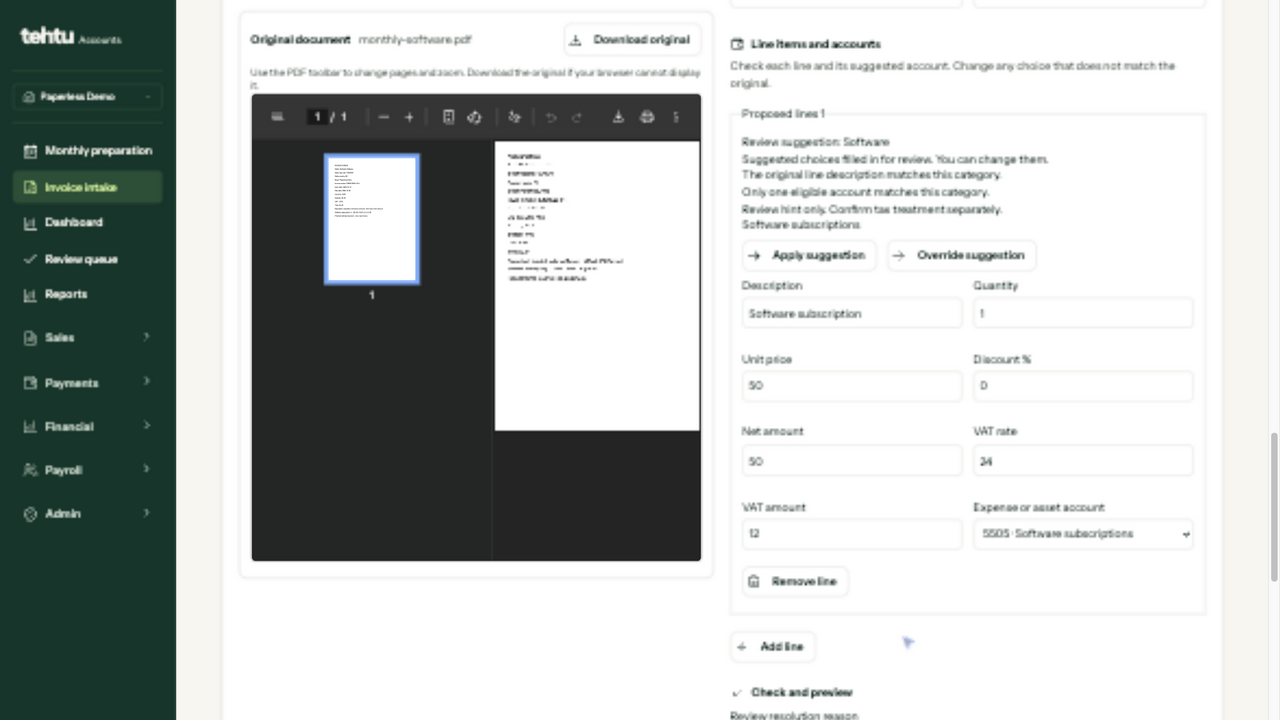
Every field stays editable. Under the number, dates, currency and amounts:
- Read from document (with its confidence) marks a value taken from the original.
- Edited by you marks a value you changed; Use read value goes back to the original's value.
- Not found on the document asks you to enter the value from the original; it then shows Entered by you.
What you enter is what gets saved.
A value that a person already corrected on this document reads Corrected by followed by the corrector's name (the name appears for the values the latest correction changed; other corrected values just say Corrected), and Use read value goes back to what the machine read. Read from document always refers to the machine's read, never to a correction.
If something was read wrongly, such as the total or a line, fix it and choose Save corrections in the action bar. It appears only while a fact differs from the saved document and keeps your fixes on the document as a new, attributed revision. It does not preview, confirm, create a draft or decide VAT, and it asks for no reason. Your other choices on the form (supplier, accounts, discount, exchange rate or accounting date you typed, reference, notes, the note, the buyer reason and the Standard VAT tick) stay as they were; an account suggested by the system is suggested again for the corrected rows. A confirmed review is not changed this way: a correction replaces the document version, so confirm it again. The Review resolution reason note compares your values with the machine read, so a saved correction still appears in it. If someone else changed the document first, Save corrections says so and Reload document shows the latest facts.
Clear, source-backed suggestions fill eligible accounts. If your administrator enabled the Typesafe JEV decision model, accounts it ranks confidently are filled too and show their model score. Override any suggestion when needed; manual corrections stay intact. Unknowns require a choice. Confidence is a hint, not approval.
The Review resolution reason note is filled in for you. It says the document was checked against the original and lists the fields you changed from what was read, such as the invoice number or a line's quantity. It follows your edits until you type in it; the note is saved exactly as shown, up to 2000 characters. After typing, Use the suggested note brings back the generated text. Account choices and VAT treatment are not listed.
If the seller’s company name clearly differs from the contact whose registry code or VAT number was read, choose the supplier yourself.
Purchase processing can use your confirmed supplier choices and matched outgoing payments to rank possible suppliers and flag a changed bank account. Old or voided invoices, reversed payments and your own bank accounts do not teach these hints. A hint does not select a supplier, confirm VAT, approve, post or pay anything. The candidate buttons and supplier-creation improvements are still a later stage; continue to check the original and choose the seller.
If a document may be your own sales invoice, no supplier is pre-selected and your company is not offered as a new supplier.
The review screen
Review opens the document on a screen of its own, over the list. The original is at the top left and the lines to check sit directly below it, one editable row per line, with Add line and a remove button on each row (Hide lines folds them away). The invoice details, the supplier, the Review resolution reason and the VAT confirmation are on the right. The bar at the bottom has Delete document and Download original on the left, a ‹ 3 / 12 › pager in the middle and Preview purchase draft and Confirm review and create draft on the right. On a phone the same parts stack: original, details, lines, and the bar stays at the bottom.
- The pager and J / K move to the previous or next document; with the high-confidence queue running, the pager walks the queue. If you changed something, you are asked first and Stay keeps the document.
- Esc or Close returns to the list at the document you came from; unsaved changes ask first.
- Nothing is saved, approved or posted by opening, paging or editing. The VAT confirmation stays unticked until you tick it, and the primary button says what is still needed.
- Save corrections is on the right of the bar, before Preview purchase draft, while a fact differs from the saved document.
- Delete document is also here; after it, the next document opens, or the list when it was the last. Confirming a draft or deleting a document also refreshes the counts in the sidebar.
- Receipts use the same screen: the report is chosen at the top of the details and Check and confirm receipt is in the bar.
High-confidence documents
The Inbox checks purchase documents in the background. In High confidence, Checking N of M… means those checks are still running; review becomes available when they finish. Outside this filter, the queue controls appear when ready documents are available. The checks only read documents and never confirm them.
The panel says how many documents could not be checked. Those documents stay out of the queue, while known-ready documents remain available to review. Use Retry checks to check the failed documents again. Coming back online also retries failed checks once; a failed retry waits for another online event or an explicit retry. If the document list could not load completely, use Retry loading before starting review. Retry loading moves keyboard focus to the documents heading, which stays available even if the queue disappears after loading. Retry checks keeps focus on the queue help when that panel will stay visible, or on the documents heading otherwise. Other loaded documents stay available while you recover.
In the Inbox, the High confidence filter lists the purchase documents whose facts are complete and where every line has a suggested account. Review high-confidence documents opens them one after another and shows High-confidence queue · 1 of 3 while you work. The queue only sets the order and opens the next document. Each document is still confirmed on its own: compare it with the original, choose the supplier (the list shows whether it was matched, needs a choice, or is new), tick the VAT confirmation yourself and choose Confirm review and create draft. Nothing is approved, posted or paid for several documents at once. A score such as Model 92% is a hint from the decision model, never an approval. Documents with missing facts or lines without a suggested account stay in the normal list.
The VAT confirmation always starts unticked: tick it yourself to confirm that every line uses standard VAT treatment. Choose Confirm review and create draft. Preview purchase draft offers an optional totals check. When another purchase is ready, it opens automatically and a status line links to the draft you just created.
Draft created
Approval, posting, and payment remain separate actions.
Preview and correction controls
- PDFs use the browser's page/zoom controls. Images offer zoom, rotation, and reset. On mobile, the original appears above the fields. Use Download original if needed.
- Extraction details and source evidence shows the source behind the proposal.
- Accounting date starts from the issue date. EUR starts at rate 1; changing currency clears that default. Supply the correct foreign rate.
- Reload a stale review. If draft creation fails after confirmation, retry conversion using the saved review.
3. Expense and travel receipts
In Inbox, open Expense and travel reports beside Invoices and receipts to see your reports, newest period first. Search by report name, claimant or destination, choose an expense or travel filter, or choose a date range. The date range includes any report whose period overlaps it. Document totals stay separate for each currency.
Choose New report, check the type and claimant, then choose Create. An expense report starts with the current month and a suggested name; both can be changed. For a travel report, enter the destination, country, trip dates and business purpose. Its suggested name and period follow the trip; a name you edit is kept. Your browser remembers the last report type and the last claimant you chose for this company.
Choose Open on a report. Use Documents to review receipts, Allocations to prepare expense rows, Tax to review tax facts, and Details to edit and save the report header or see its email address. Travel reports also have a Trip tab for travel declarations and the daily allowance preview. The selected tab stays in the address, so reloading or using the browser Back button keeps your place.
More → Add receipts opens Inbox with that report already chosen as the destination. Set the period and claimant deliberately: a receipt cannot establish who paid or which trip it belongs to.
Receipts uploaded or emailed without a report are checked in Inbox, next to the original:
- Expense report or Travel report suggests a draft only when exactly one covers the receipt date; otherwise choose it yourself. Options show the claimant, because a receipt cannot show who paid. New report… creates one there; its name, period and trip dates start from the receipt date.
- Correct or fill in the fields. They are marked the same way as a purchase, and your corrections are kept if you switch reports or reload the report. Until a report is chosen, the facts are editable on the right of the original (supplier, number, dates, currency, net, VAT and total) and the rows sit under it. Each row has its own VAT amount. A due date is shown only when one was read or saved. Each value says where it came from: Read from document, Corrected (with the person's name when their correction changed that value) and Use read value, or Edited by you; a changed row offers Use read row. The technical details keep what the machine read. A line under the facts checks net + VAT against the total, the rows against the net, the row VAT amounts against the VAT and each row's VAT against net × rate, and a missing currency, once you stop typing. These are warnings only: the VAT you save is the VAT printed on the document, never a computed one. Save corrections appears only while something changed: it keeps the corrected facts on the document as a new revision, and nothing is filed or booked. Choosing a report saves unsaved corrections first. The list then shows the corrected total, a Corrected label and recomputed problem chips. There is no reason field and no confirmation; to undo a correction, use Use read value and save again. If someone else changed the document meanwhile, Save corrections answers that it changed and Reload document shows the latest facts. EUR starts at exchange rate 1. If the receipt prints no lines, Use the receipt totals as one line adds one.
- Choose Check and confirm receipt. When only allocation is still open, the receipt is confirmed in the same step. Any other issue is shown first and needs Confirm immutable receipt facts.
The next document to review opens, and the status line links to the report. Allocations, approval and reimbursement stay in Expense and travel reports.

Confirm the corrected receipt on Documents first, then open Allocations. Add remaining receipt lines prepares allocation rows together. Review suggested categories/accounts, payer, business purpose, and the tax preview before saving. Existing saved rows remain intact. An unavailable tax amount is not zero.
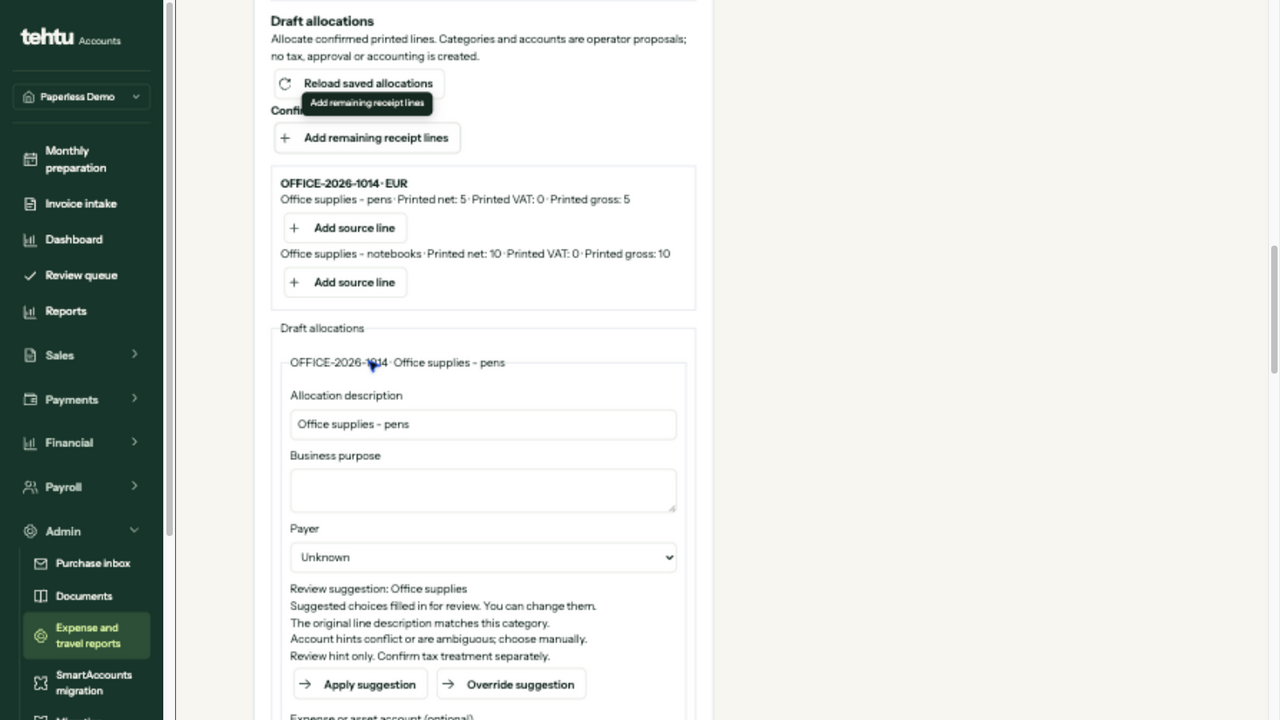
An ambiguous account stays unresolved. Receipt confirmation, report approval, posting, and settlement are separate.
4. Forward documents automatically
Open Email addresses and intake settings and copy the selected company's exact Active address. Choose the purchase, expense, travel, representative, or named-report destination that fits. Requested means setup is pending; do not use or guess that address.

Configure a narrow rule in your mail provider, including its verification step. Preserve attachments and your own copy. Send a test; verify company, workflow, recipient, and original in Inbox and Email originals and processing history before relying on the rule. Sending an email does not prove acceptance.
Find a document or resolve a problem
Search supplier, document number, filename, submitter, report name, currency or the total as read from the document. Search ignores case and accents (for example, oun finds Õun) and applies as you type. The search and filters stay in the URL.
Choose status or document-type chips to narrow the list. Handled includes purchase drafts and confirmed report receipts; handling does not post anything. Receipts not in a report shows expense and travel receipts still waiting for a report. The Received period filters the date a document arrived, with a preset or inclusive From/To dates.
Click a column heading to sort, then click again to reverse it. Dates and totals start largest or newest first. Use Sort by to order by Status, Submitted by, Received, Supplier, Document date, Number, Type, Report, Total or Currency. The document number appears below the supplier, type is shown by the row icon, and currency is included in the total. Purchase drafts shows just purchase drafts in one click. Submitted by uses the sender's name when available and otherwise shows Email or Upload. The review pager follows the order shown in the list.
Documents appear as they load; you can keep working while later pages arrive. If loading fails, loaded documents stay available and Retry loading tries again. The list loads all cursor pages, up to 2,000 documents. If that cap is reached, a notice explains that search, dates, sorting and totals cover only those rows. Narrow the status or type filters to reach other documents; Received dates are filtered in the browser. Shown N of M and totals per currency always describe the shown rows. Totals are as read from the documents; rows with a missing or invalid total/currency are counted separately. Clear resets search, filters and sorting in one click.
| Status / problem | Next step |
|---|---|
| Processing | Wait; use Refresh documents if delayed. Follow any notice. |
| Needs review | Open Review and check the original. |
| Converted to draft | Open the purchase draft. |
| Failed | Correct the cause, then use a permitted Process retry. The original stays saved. |
| Missing email | Keep the original email and delivery ID; ask your administrator. Avoid repeated resends. |
Problems shown in the list
Each row names what was found in the file, in short form, before you open it. Blocking problems come first and are announced as Blocking:. The list shows at most two; +N more stands for the others. These are hints from reading the file, not decisions: seeing them books, approves, and changes nothing, and a document with no problem shown can still need your check against the original.
| Shown in the row | What it means |
|---|---|
| Read failed, Already booked, Several documents, Credit note (blocking) | The file could not be read; its bytes are already part of a booked record; it seems to hold more than one document; it looks like a credit note rather than an invoice. Check the original before going on. |
| Wrong buyer?, Bank account changed, Invoice or receipt? | The buyer on the document differs from your company; the supplier's bank account differs from the one on record; the kind of document was not clear. Settle each in review. |
| Duplicate?, Same file twice | A purchase invoice with the same supplier and number exists; another item holds the identical file. Check before creating another draft. |
| Supplier missing, Date missing, Total missing, Currency missing | Not found in the file. Fill it in from the original during review. |
| Net + VAT ≠ total, Total ≠ lines, Line N: amount ≠ qty × price, No lines, Line N incomplete | The amounts or lines read do not add up or are not complete. Compare with the original and correct them during review. |
Delete a document sent by mistake
Open More on the row and choose Delete document. The dialog names the document and asks for nothing else: no reason and no note. Choose Delete permanently to confirm, or Cancel. Owners, administrators, and accountants can delete; viewers see the action disabled with the reason.
- When: while the document is waiting, being read, needs review, or failed. Once it has become a purchase draft or a confirmed receipt it is kept as accounting evidence and cannot be deleted here.
- Removed: the original file, the details read from it, its processing details, and review corrections that were not turned into a draft.
- Kept: a deletion record with who deleted it and when; who sent or uploaded the document, when, and through which channel; the file type, size, and fingerprint (a checksum); and which earlier processing steps happened, with who and when but without their reasons. It holds no document content and is itself never deleted. The deletion is also listed in the audit events.
- Email: a document that arrived by email is deleted, not the email: the email stays in Email originals and processing history.
- After: deleting cannot be undone. Sending the same file again creates a new document. Encrypted backups taken before the deletion may still contain the file until those backups are removed.
Delete several documents
Tick the documents in the list, or hold Shift while ticking the last document to select a range. Select all shown selects the loaded, filtered rows, up to 100 documents. Searching or changing a filter clears any selection it hides. Sorting preserves the remaining selection.
Choose Delete, check the document names, then Delete N permanently. No reason or note is needed. Booked documents are kept and shown separately. The originals and extracted details of the other documents are deleted permanently; email history and content-free deletion records stay.
Deletion runs one document at a time. Stop finishes the current document and leaves the rest Not started. The results name every document: deleted, already deleted, kept (booked), changed meanwhile, failed, not confirmed or not started. Deleted rows leave the list. Booked rows stay in the list and leave the selection; when only booked rows remain, the dialog closes automatically. Other results stay selected. Reload and delete N changed explicitly reloads and deletes only the documents that changed. A result that is Not confirmed is checked by reading the document back. Check again repeats only that read, without deleting again; deletion is never retried automatically. If storage cleanup is pending, the notice says the files will be removed shortly.
A three-document range takes four clicks and no typing: tick, Shift-tick, Delete, confirm. Deleting all shown takes three clicks and no typing, including a selection containing booked documents. Checking an unconfirmed result again takes one click and no typing. Deleting one document through its row menu still takes three clicks and no typing.
Duplicates, retries, and retained originals
Identical bytes deduplicate within the same company, workflow, and report. Another report/workflow creates a separate item; different scans or exports may evade duplicate detection. Check supplier and invoice number before creating another draft.
Processing allows three attempts. Exhausted retries require an audit reason. Originals, delivery evidence, and review history stay saved once a document has become a purchase draft or a confirmed receipt; reviewing does not delete a mailbox source or dispose of evidence. Only a document that was never booked can be deleted, as described in Delete a document sent by mistake. Your administrator governs retention and legal holds.
Other inboxes and extraction limits
Inbox has three tabs: Invoices and receipts (uploads and the purchase documents), Emails and Evidence review. The older /inbox and /documents addresses open the matching tab. Bank statements are imported in Banking, and prepared bank evidence packages are reviewed under Source bank evidence; neither is part of Inbox.
The Emails tab accepts saved .eml messages and links attachments to existing invoices by ID. Mark reviewed changes its queue status only. Limits: 20 MiB per message, 10 MiB per attachment. Automatic forwarding has separate configured limits.
The SmartAccounts source document inbox belongs to migration; imported metadata does not create financial records.
Default extraction bounds: 20 PDF pages, 40 million image pixels, 60 seconds. Protected/corrupt files, poor scans, mixed taxes, and complex tables may fail or need corrections. General model accuracy has not been established.
Access, privacy, and keyboard help
Originals/downloads require authorization. Keep credentials, tokens, and private documents out of support screenshots. Local extraction uses no model service by default; external structured extraction and the optional Typesafe JEV account ranking each require explicit operator configuration and approved data transfer/retention.
Use Tab for button help, Escape to dismiss it, and Enter/Space to activate. Touch users can rely on visible instructions. Unavailable actions explain what is missing.
Press Ctrl+K (Cmd+K on a Mac) on any page, also while typing in a field, to open Search and commands; the Search and commands button in the toolbar does the same. It is not available while a dialog is open. Choose Upload document to pick a PDF, JPEG, or PNG: it goes to Purchase invoice (or the destination chosen on the Invoices and receipts tab) with the same five-second Undo notice. The palette can also open a new invoice, contact, or payment form, go to a page, or find an invoice or contact. It never approves, posts, or pays anything.
Two letter shortcuts work only while focus is inside the list they belong to, never in a field or a dialog. In Today, J moves to the next item, K to the previous one, and Enter opens the focused item. In the Invoices and receipts tab, J and K open the next or previous document waiting for review (if you have unsaved corrections you are asked first, and Stay keeps the document), and A fills empty lines with their suggested account. A leaves a line you changed, cleared, or replaced alone, never ticks the VAT confirmation, and creates nothing. Check the filled accounts before you confirm. No shortcut confirms a financial action.
For help, retain the original and document/delivery ID. Administrators have internal documentation in the signed-in admin area.